set up elsewhere for android
No computer needed. Elsewhere for android runs on the phone alone. It needs Android 11 or later and a one-minute setup in the phone's settings. (An iPhone still needs Elsewhere on a computer.)
Install it on the phone
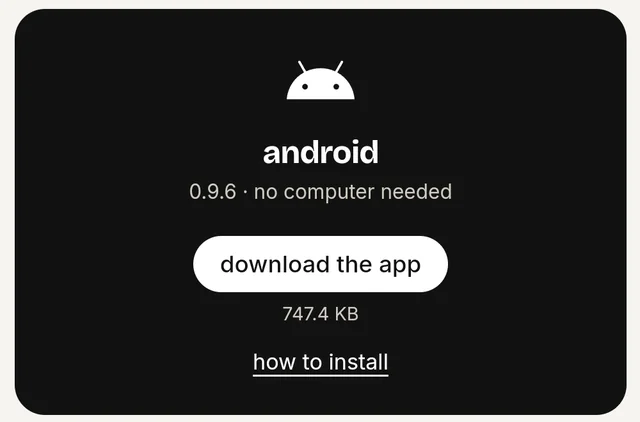
- On the phone, open the Elsewhere page and tap download the app on the android tile.
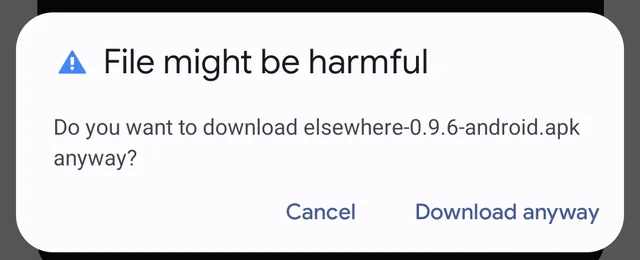
- Chrome may say "File might be harmful". It says that about every app that isn't from the Play Store. Tap Download anyway.
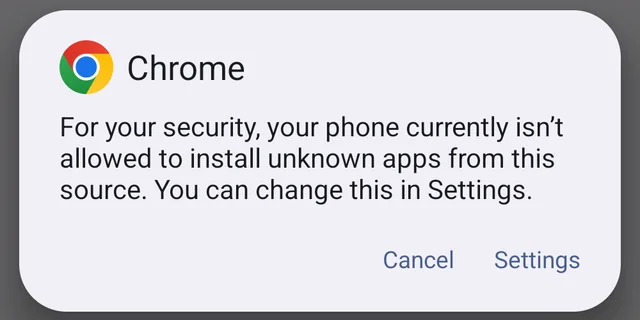
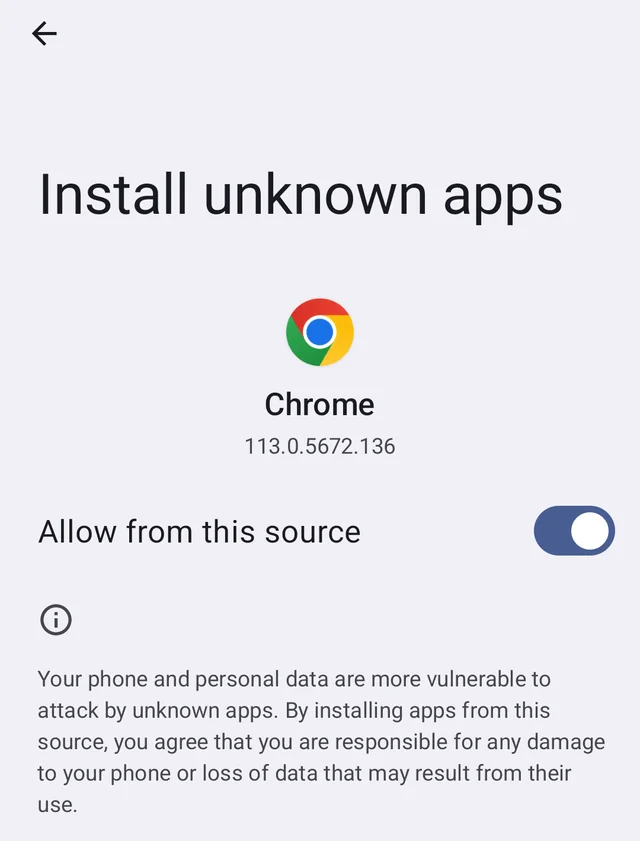
- Open the downloaded file (tap Open, or find it in Chrome's Downloads). The first time, Android says your browser isn't allowed to install apps: tap Settings, turn on Allow from this source, then go back.
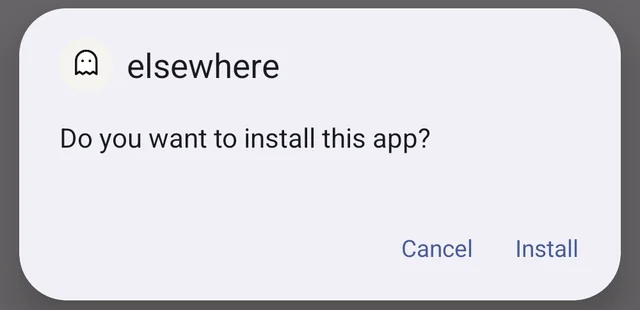
- Tap Install.
- If Google Play Protect asks about an unknown app, tap More details → Install anyway.
- To check the download, compare its SHA-256 with the one under verify your download on the Elsewhere page.
Already have Elsewhere on the phone from the computer app? The new one installs over it. Your settings stay.
The one-minute setup
Open elsewhere. It walks you through five steps and ticks each one off by itself:
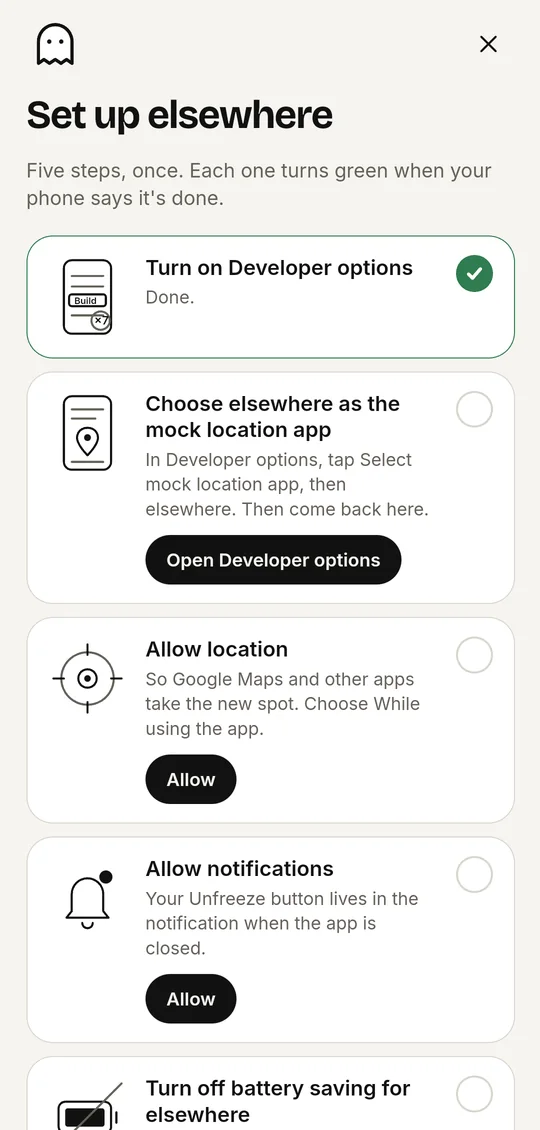
- Developer options: Settings → About phone → tap Build number 7 times.
- Mock location app: Settings → Developer options → Select mock location app → elsewhere.
- Location: allow it, so maps and other apps take the new spot.
- Notifications: allow them. That's where Unfreeze lives when the app is closed.
- Battery: allow Elsewhere to run in the background (or Settings → Apps → elsewhere → Battery → Unrestricted).
Teleport
Search a place or pick it on the map, then tap Teleport here. The phone keeps that spot until you press Unfreeze, even with the screen locked or the app swiped away. While a spot is set, a silent notification shows the place name and an Unfreeze button.
Android's own notice. Android shows its own "Mock location is on" notice. It's from your phone, not from Elsewhere. You can swipe it away.
After a restart the spot comes back once you unlock the phone for the first time. Until then, apps see your real location.
With a computer (optional)
Elsewhere on your Windows, Mac or Linux computer also sets an Android phone's location over USB, as before. For that it talks to the phone through adb, Google's free Android tools (Elsewhere downloads them from Google the first time), and installs elsewhere on the phone for you.
1. Turn on USB debugging (once)
- On the phone: Settings → About phone and tap Build number 7 times. You'll see "You are now a developer".
- Settings → System → Developer options (on Samsung: Settings → Developer options) and turn on USB debugging.
- Plug the phone into your computer with a data cable and unlock it. Tap Allow on "Allow USB debugging?" and tick Always allow from this computer.
- If the phone asks what the USB connection is for, pick File Transfer. "Charging only" hides the phone from Elsewhere.
2. Connect in Elsewhere
Pick Android on the connection screen, select your phone and press Connect. The first time, Elsewhere installs elsewhere on the phone and makes it the phone's mock location app.
Holding your location
When you teleport, your phone keeps that location until you press Unfreeze, even unplugged. The hold stays through unplugging, Wi-Fi dropping, quitting Elsewhere, your computer sleeping or shutting down, and the phone's screen being locked for hours.
You can always Unfreeze without your computer:
- The notification. While holding, a silent notification shows the place name and an Unfreeze button.
- The app. Open Elsewhere on the phone: it shows the held place and Unfreeze, then says "back to real location".
- Elsewhere. Plug back in (or reconnect over Wi-Fi). Elsewhere says "This phone is holding a spot" and Unfreeze works there too.
Restarting the phone ends a hold set from the computer. Your real location is back after the restart.
If you drive and unplug mid-route, the phone stays at the point it had reached. It doesn't jump back.
Don't want this? Elsewhere on the computer → Settings → turn off Keep my location when I unplug. Your real location then comes back about 10 seconds after Elsewhere loses the phone.
Battery. Some phones stop apps in the background to save battery, which would end the hold. If Elsewhere on the phone warns you about this, open Settings → Apps → elsewhere → Battery → Unrestricted.
Force stop or uninstall doesn't bring your real location back. Android keeps the last location it was given. If you force-stopped Elsewhere on the phone, open it and press Unfreeze. If you uninstalled it, connect in Elsewhere again (it reinstalls its phone app) and press Unfreeze, or restart the phone.
Wi-Fi (Android 11 and later)
- Connect by USB once, or: Developer options → Wireless debugging → turn it on.
- Tap Pair device with pairing code. In Elsewhere, choose Wi-Fi → Pair a new phone and type the IP address & port and the 6-digit code shown on the phone.
- Phone and computer must be on the same Wi-Fi.
Good to know
- Apps can tell. Android marks positions from a mock location app as "mock". Some apps and games check this and ignore it or flag your account. Changing your location may break the rules of some apps and games, and they may ban your account. Use Elsewhere responsibly. You're responsible for how you use it.
- Windows: if your phone doesn't show up, install your phone maker's USB driver (Samsung, Google Pixel, other brands).
- Xiaomi, Redmi, POCO: also turn on Install via USB in Developer options.
- Real location back: press Unfreeze in the notification, in Elsewhere on the phone, or in Elsewhere on the computer. Restarting the phone also ends a hold set from the computer.
- Tested on Android 11 and 14 (emulators) and Android 17 (Samsung Galaxy S23 Ultra).
| Message | Fix |
|---|---|
| Allow USB debugging on your phone | Unlock the phone and tap Allow (tick Always allow). |
| Phone not found | Use a data cable, unlock the phone, turn on USB debugging. On Windows, install the USB driver. |
| The phone blocked the install | Xiaomi/Redmi/POCO: Developer options → Install via USB → on. |
| An older test version of Elsewhere is on this phone | Settings → Apps → the old Ghostline or Elsewhere app → Uninstall, then Connect again. |
| Your phone didn't allow mock locations | Developer options → Select mock location app → elsewhere. |
| Couldn't start Elsewhere on your phone | Unlock the phone, open Elsewhere on it once, then try again. |
Phone not found?
Elsewhere tells you on the connection screen what it sees, and highlights the step to fix:
- Use a data cable. Many cables only charge. Plug straight into the computer, not a hub.
- USB mode: File Transfer. Pull down the notifications, tap the USB notification, choose File Transfer.
- Tap Allow on "Allow USB debugging?" on the phone. If you missed it, unplug and plug back in.
- Windows: some phones need the maker's USB driver (Samsung, Google Pixel, other brands). Elsewhere says when it's missing.
- Linux: if Elsewhere says Linux needs a one-time permission, run the command it shows (copy button), then replug the phone. The .deb installs this for you.
Still stuck? In Elsewhere open Settings → Diagnostics → Copy device log and send it to us on Discord or the Support page. It lists what your computer sees (no account details, phone serials shortened).